
Integration Step-by-step
- In your consentmanager account, go to Menu > CMPs > Integrations and enable piano
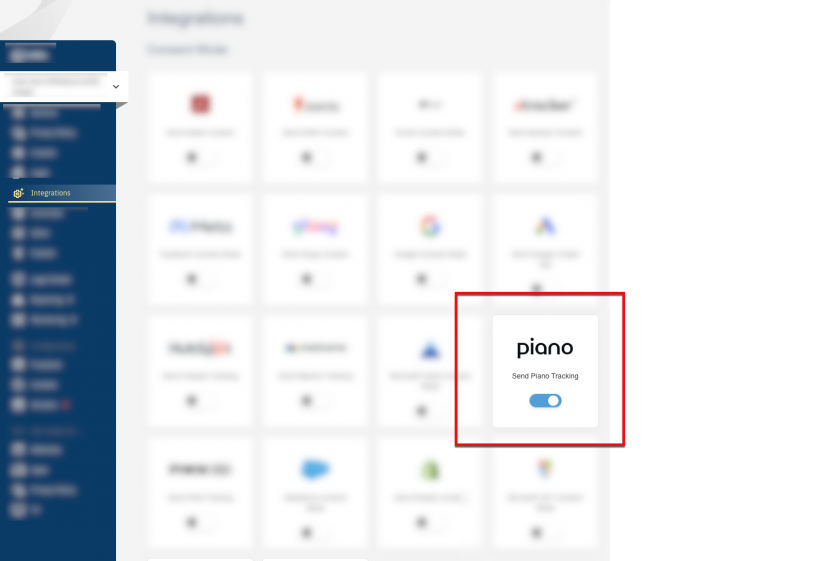

- Ensure under Menu > CMPs > Purposes that you have sufficient purposes active in your CMP to match piano’s purposes/products, please find a list here:
Purpose Products Audience measurement ( AM)Analytics ( PA)Content personalization and Performance ( CP)Composer ( COMPOSER)Advertising ( AD)DMP, Social Flow (SOCIAL_FLOW)Personal Relationship ( PR)ID,VX,ESPData Layer ( DL) (JS only)DL - (Go to Menu > CMPs > Vendors and ensure that you have the vendors named “Piano …” (IDs s1281, s3188, s3186, s3187, s3190, s3189) in your vendorlist:
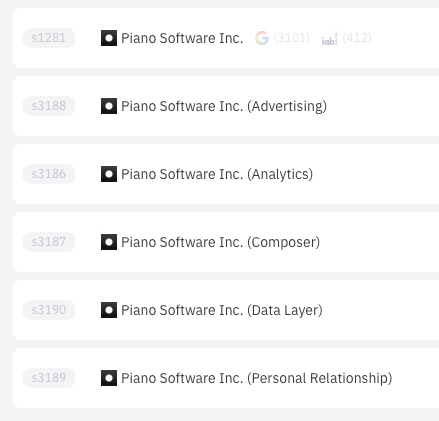
(Note: Not all of these vendors are necessary in all cases) - The main piano vendor s1281 is required. The other piano system vendor will each represent a piano purpose (and the associated piano products). Now assign a matching CMP purpose to each piano system vendor e.g. purpose “Analytics” to system vendor “s8186 Piano Software Inc. (Analytics)”