
Two Factor Authentication or 2FA can be used in order to increase the security of your account.
Enabling 2FA
Admin account
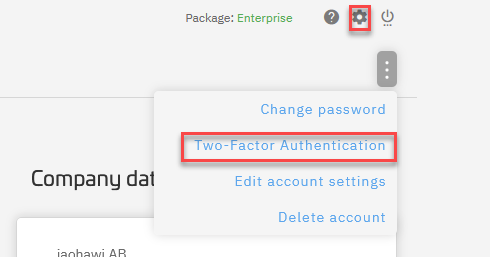
For the account owner (admin), please click on the cog icon  in the right top corner and then choose Two-Factor Authentication from the submenu:
Subaccounts
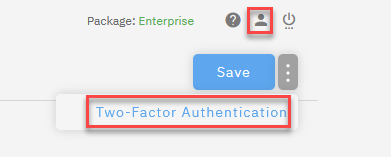
For subaccounts, please click on the user icon in the right top corner and then choose Two Factor Authentication from the submenu:
OTP-Auth
OTP Auth generates a one time password in order to verify that the user can access the account (see here https://en.wikipedia.org/wiki/One-time_password ). Once enabled, the system will show you a key and/or a QR-code. You can use apps like Google Authenticator (https://play.google.com/store/apps/details?id=com.google.android.apps.authenticator2&hl=de&gl=US) or similar to generate these one time passwords.