
Automatic Integration via PrestaShop PlugIn
Please note: Automatic code blocking can cause problems with your website.
In order to integrate your CMP into a PrestaShop website, please follow these steps:
This Plugin is designed for PrestaShop Version 1.6 & 1.7 (latest tested @1.7.7.8)
- Go to Modules=> Module Catalog => In top of the page click on Upload a module button
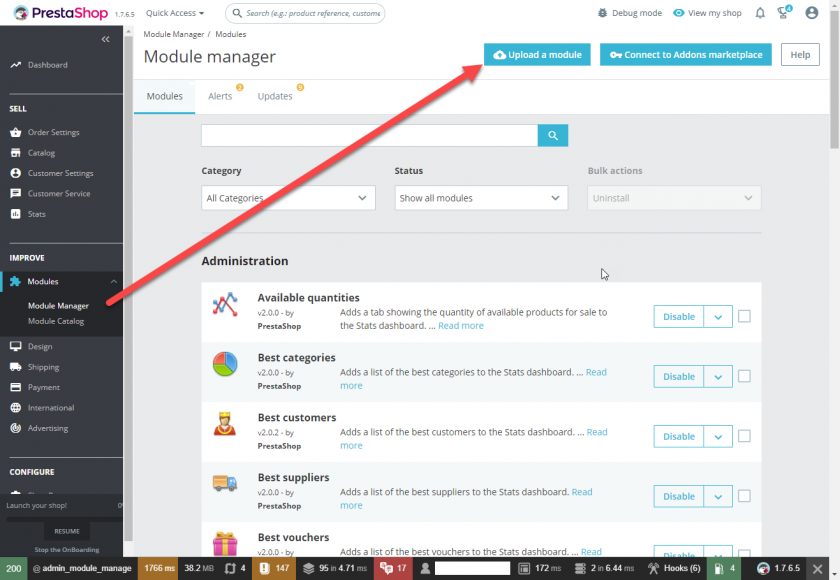

- Download the consentmanager plugin here and upload it to PrestaShop
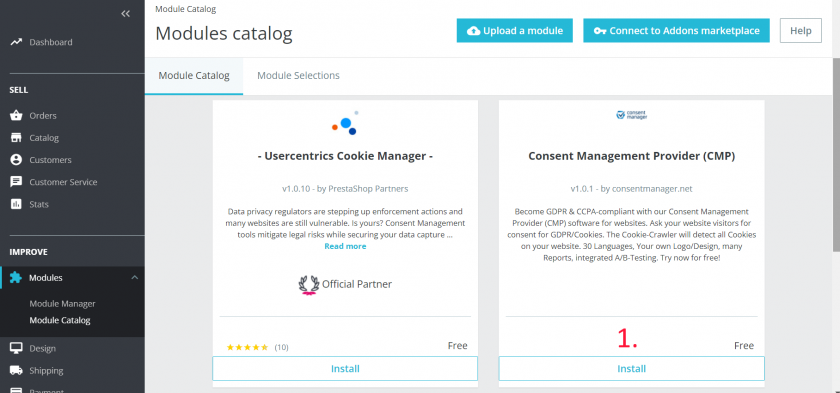
- Once uploaded, click on Improve > Module Catalog > Go to modules -> Module catalog -> search for “consentmanager module” and click on Install and Configure
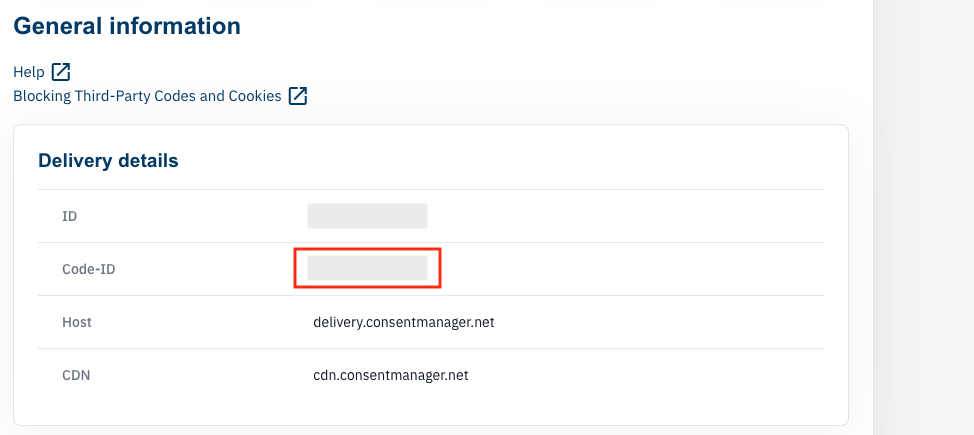
- Get your CMP Code-ID
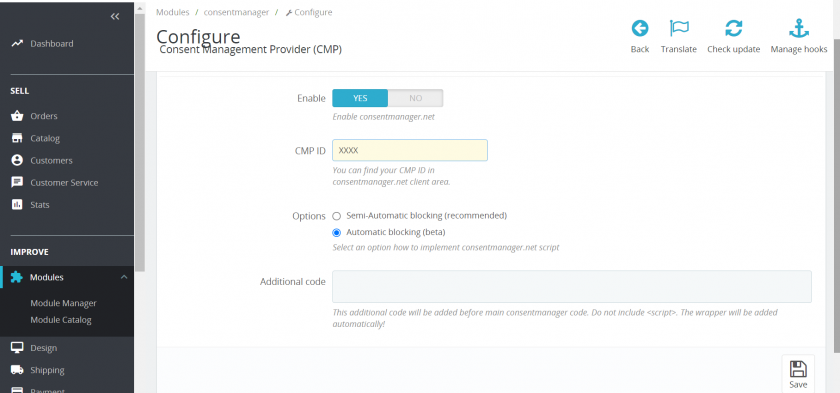
In our module configuration page you have following options:
Enable: You can enable/disable consentmanager functionality
CMP Code-ID: Please fill out your CMP Code-ID (Step 4)Options: Please select the way you want to install consentmanager functionality (automatic or semi automatic)
Additional code: This gives you ability to include any javascript code before consentmanager functionality is initialized– https://consentmanager.net/help/developer-reference/client-side-configuration-options/
– https://consentmanager.net/help/developer-reference/javascript-api/
Note: Please ensure that you have set Advanced Settings > Performance > Smarty > Force compilation enabled so that changes to the template get published.
Manual integration
Please note: The below description is only valid for the manual blocking code. If you want to use automatic code blocking, please ensure that the CMP-Code is inserted directly after the <head> element of your website code.
In order to integrate the CMP-Code into a PrestaShop Shop please follow these steps:
- Login to your PrestaShop Back Office
- In the menu click on Design > Theme & Logo
- Click on Advanced Customization and Download theme
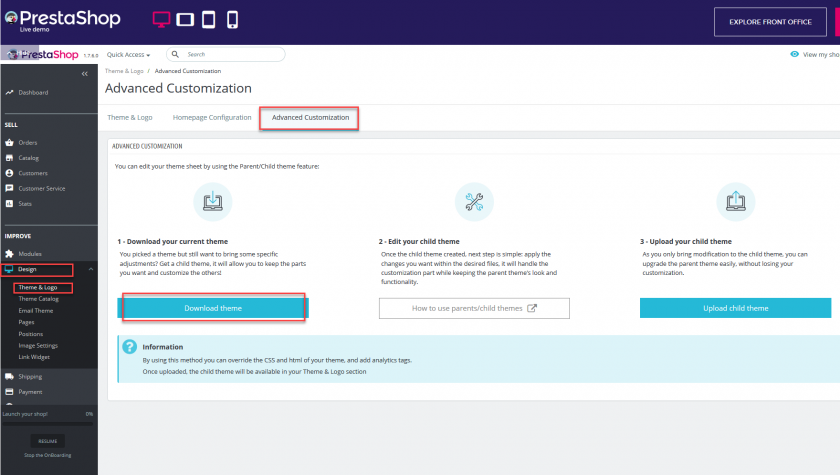
- Unpack the theme files and edit the file page.tpl (sometimes index.tpl, index.php, page.php and similar)
- Add a new block at the end of the file:
{block name='head' append}{literal} ... CMP-Code ... {/literal} {/block} - Save the file, zip the directory and upload it